' Internet
Showing posts with label Internet. Show all posts

Tuesday, November 4, 2014

How Updates Work (or Why OTAs Break Root)

Updates can make or break functionality on your phone or tablet. No matter which operating system you may have (iOS, Android, Windows Phone, etc.), updates can be troublesome, as they can break your jailbreak/root that you may have worked hard on to get (and make it harder to re-obtain it). But before we can explain why they are so destructive to custom tweaks, we must first explain what updates are and what they consist of.

What are updates?

Updates (known as OTAs, or over-the-air updates, to Android users) are patches to an operating system that can add, remove, or change functionality of said operating system. Updates can be made to patch only certain system files (minor updates), or they can be made to patch the entire operating system (major updates). For example, an update can contain fixes for security breaches or hacks that can be exploited to create a jailbreak/root. If you're a user that is security-minded and/or ready to try new concepts as they are deployed, OTAs can be very useful. However, if you're a person that likes to jailbreak/root and tweak the operating system(s) installed on your device, OTAs can be bad. For example, a version of an OS that could be jailbroken/rooted via an exploit can be patched in an update, making it harder to jailbreak/root your phone/tablet. Sometimes updates will leave custom tweaks as is, but this is usually not the case.

Why are updates so destructive to custom tweaks?

Updates are often destructive to custom tweaks for a few reasons: 1) they can wipe the entire operating system core (usually leaving alone apps and user data stored in internal memory and/or an external SD card) and copy in all core OS files from the update; 2) they can make modifications to only certain files, breaking tweaks dependent upon said modifications; 3) they can safely remove any and all custom modifications to the OS; and/or 4) they can create file patches that will need to be bypassed in order to preserve root and/or re-obtain it. Not all files used in rooting (Android only) may be removed with an OTA, so re-rooting could be easier. Also note (Android only) that performing a factory reset may not remove root and/or other tweaks, as a factory reset will usually only overwrite user data and not system files (although custom tweaks may be dependent upon certain user data), while an OTA will typically do the opposite (keep user data, overwrite system files).

Is there anything that can be done to preserve my root/jailbreak when an update occurs?

While not guaranteed, there are steps you can take to attempt to preserve your root/jailbreak and/or custom tweaks. If you're using the SuperSU app on Android, you can try checking the "OTA Survival" checkbox in the SuperSU settings, although OTAs may fail while the checkbox is checked. Make sure to search the Web to check if your device root will survive or break after a particular OTA or if the "OTA Survival" setting will prevent an OTA from being applied. You may find after an update that root is preserved through the OTA with the OTA survival setting off, in which case that particular OTA is probably a minor one. For iOS, an OS update will almost certainly patch a jailbreak, so if you wish to keep it for future use, make a backup of your OS before you update so you can revert to it in a later point in time. As for Windows Phone, you may not have an option to keep your jailbreak after an update, so update only when a way of jailbreaking the latest update is available. One surefire way of preventing a root/jailbreak loss is to not update (or if you must update, wait until a method of jailbreaking/rooting the update is available). Another option is to install a custom OS (each device has a specific way of doing this), but you will often need to unlock your bootloader, install custom firmware to bypass any security measures implemented by your carrier/device manufacturer, and/or void your warranty. For instance, CyanogenMod and most derivatives of it come with root and Busybox (a package for rooted Android users that allows you to use a broader spectrum of typical Linux commands) by default, so you can update these without worrying about breaking root, but OTAs/updates of custom operating systems of any kind may break custom tweaks.

Tuesday, January 21, 2014

Watch Out For Google Drive Phishing Attack Emails

At one point in time or another, you may have seen some emails from Google Drive/Docs that include a link to a folder and/or document. However, not all of these emails are legit. The non-legit emails will, upon opening the contained link(s), will ask you to sign in, even if you are already logged into a Google Account.
The emails will typically look like one of the following 2 screenshots (keep in mind that the emails you receive, if you are targeted, may be similar to these, if not identical):
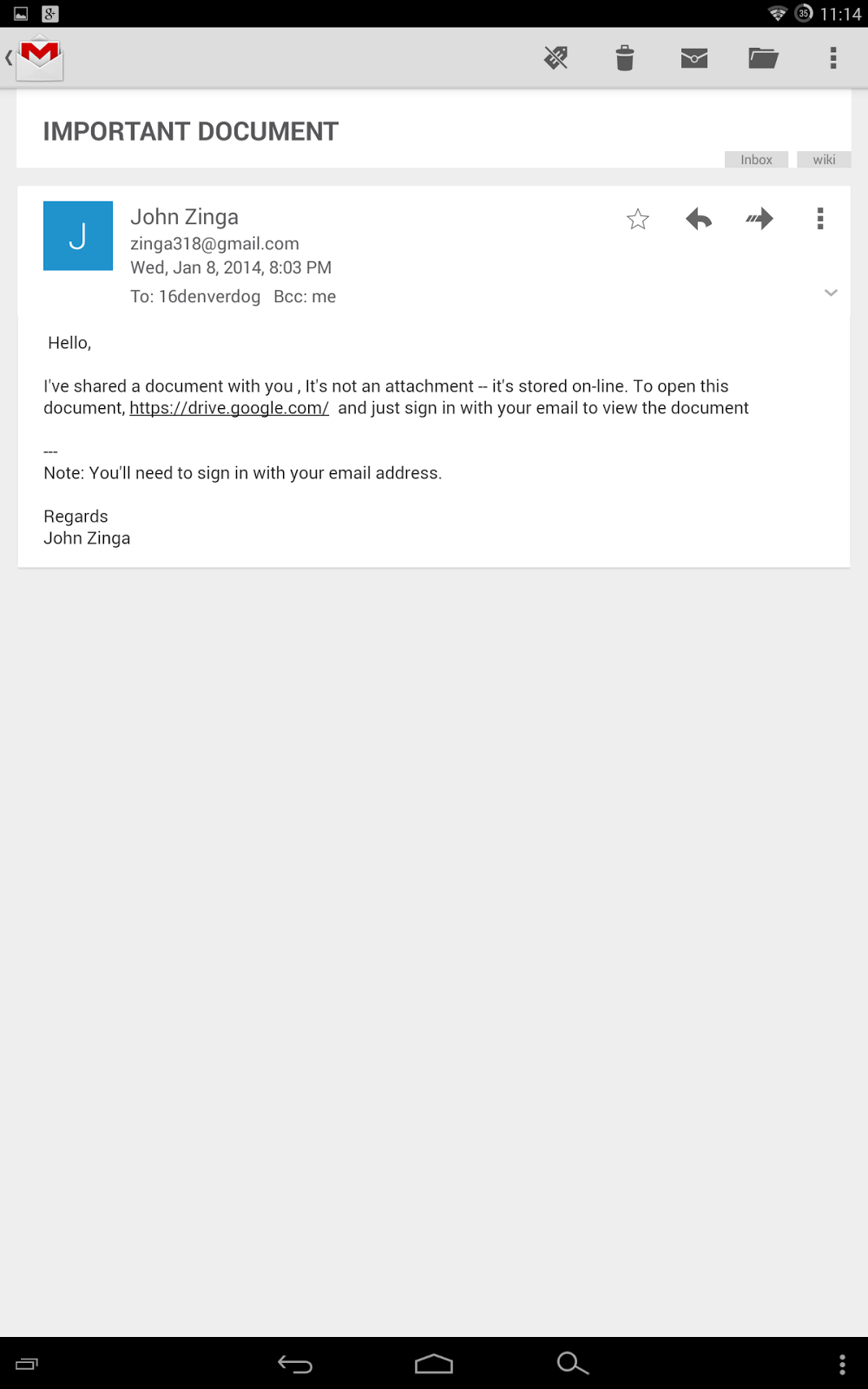
However, these emails do NOT link to valid Google Drive sign-in URLs. The URLs actually point to phishing websites, such as the one shown below:

What's wrong with that page? Take 5 minutes to spot all the mistakes, or just read on...

Firstly, the URL in the address bar is not a valid Google Drive URL. The proper Google Drive URL always begins with:

https://drive.google.com/

As we can see, the URL obviously does not pass as a link to a document in Google Drive.

Secondly, the methods you can login with are incorrect. The real Google Drive login page will only let you login with a valid Google Account (usually xuser@gmail.com, where xuser is your Gmail username without the @gmail.com part). Since the fake page above will let you login with any email, it is not a legit sign-in page. This fake page will actually capture your login credentials and use them to hack your account.

Thirdly, the layout of the page is incorrect. A real Google Drive login page will look something like:
Now that we can differentiate between the real sign-in pages and the fake ones, we need to know how to stop or diminish the non-legit emails:

1) Always make sure to check that the URL that claims to be a Google Drive sign-in page starts with https://drive.google.com. If not, exit the webpage immediately. If you inadvertently enter your login credentials to your email, change the password to it immediately.

2) If you get a fake email, report it as a phishing attack (in Gmail, open the message, click the dropdown arrow next to the reply button, and click "Report phishing."

3) If the email came from someone you know, or if they have sent you legitimate emails in the past, send an email to them about the attack. They should change their passwords as soon as possible.